

Monster Hunter Wild’s Title Update 2 was thrilling not just for the inclusion of Seregios and Lagiacrus. Beyond the new cosmetics and balance tweaks, Photo Mode has received notable upgrades. While the new Effects tab offers customizable image options and filters, the highly anticipated feature of removing NPCs and effects in Photo Mode is what truly stands out. If you're looking to eliminate Alma from your snapshots or get rid of the Dragon Ball Z-like auras that skills and talismans provide, we're here to guide you.
How to Stop Alma From Ruining Photos
Let’s be honest, this is probably why you’re here. The only thing more certain than a Tempered Mizutsune taking you out with one blow is Alma and her Seikret photobombing your perfect shots. Luckily, we now have a way to prevent that.
© Screenshot: Capcom / Samuel Moreno / Kotaku
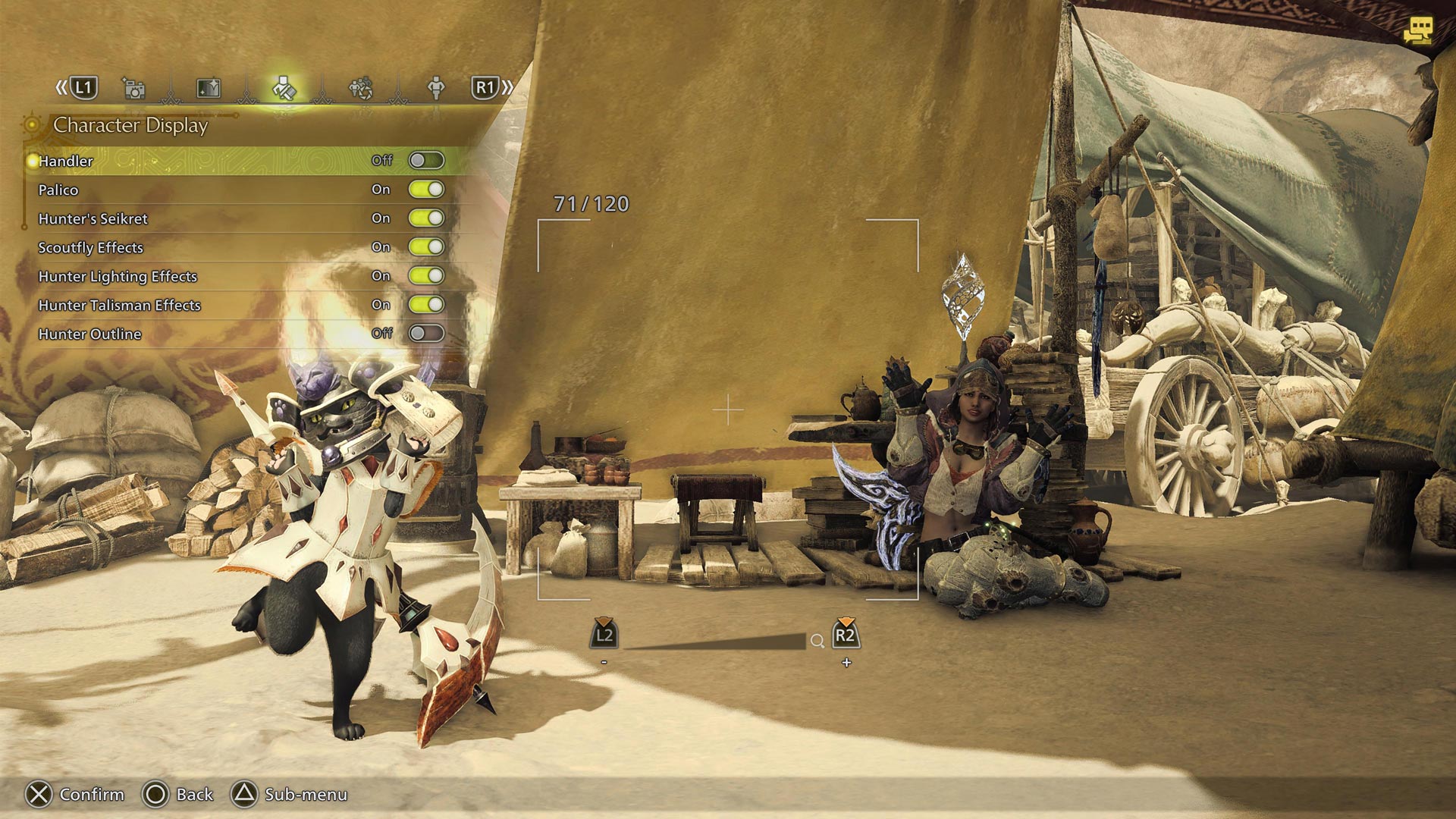
Follow these steps to make your handler disappear while snapping photos:
While in Photo Mode, press L1/LB to open the Edit Menu
Press R1/RB to navigate to the Character Display tab
Toggle “Handler” to remove Alma or Eric (and their Seikret) from the photo mode
This change takes effect instantly, whether you're using live Photo Mode or accessing it after pausing the game. Simply flip that toggle, and your handler will vanish. The two toggles below it perform the same function for your Palico and Seikret.
How to Remove Glowing Buff Effects
Though Alma can be a major hindrance in taking pictures, the glowing buff effects can be equally bothersome at times. Monster Hunter Wilds visually represents many buffs by adding a colorful aura to your character. While these can be useful, they often become an eyesore during battles and particularly when taking pictures.
To disable glowing buff effects in pictures, go to the Character Display tab in the Edit Menu and toggle off both Hunter Lighting Effects and Hunter Talisman Effects. Doing so will specifically eliminate glowing effects from skills and talismans.
You're not restricted to removing these effects solely in Photo Mode. They can also be turned off during gameplay, though you'll need to navigate through some menus first. Here's how to remove the glowing effect during gameplay:
Open the Options Menu
Go to the third page
Toggle the Activate Skill/Item Effects and Equipped Talisman Effect options to Do Not Display
What are Scoutfly Effects and Hunter Outline?
© Screenshot: Capcom / Samuel Moreno / Kotaku
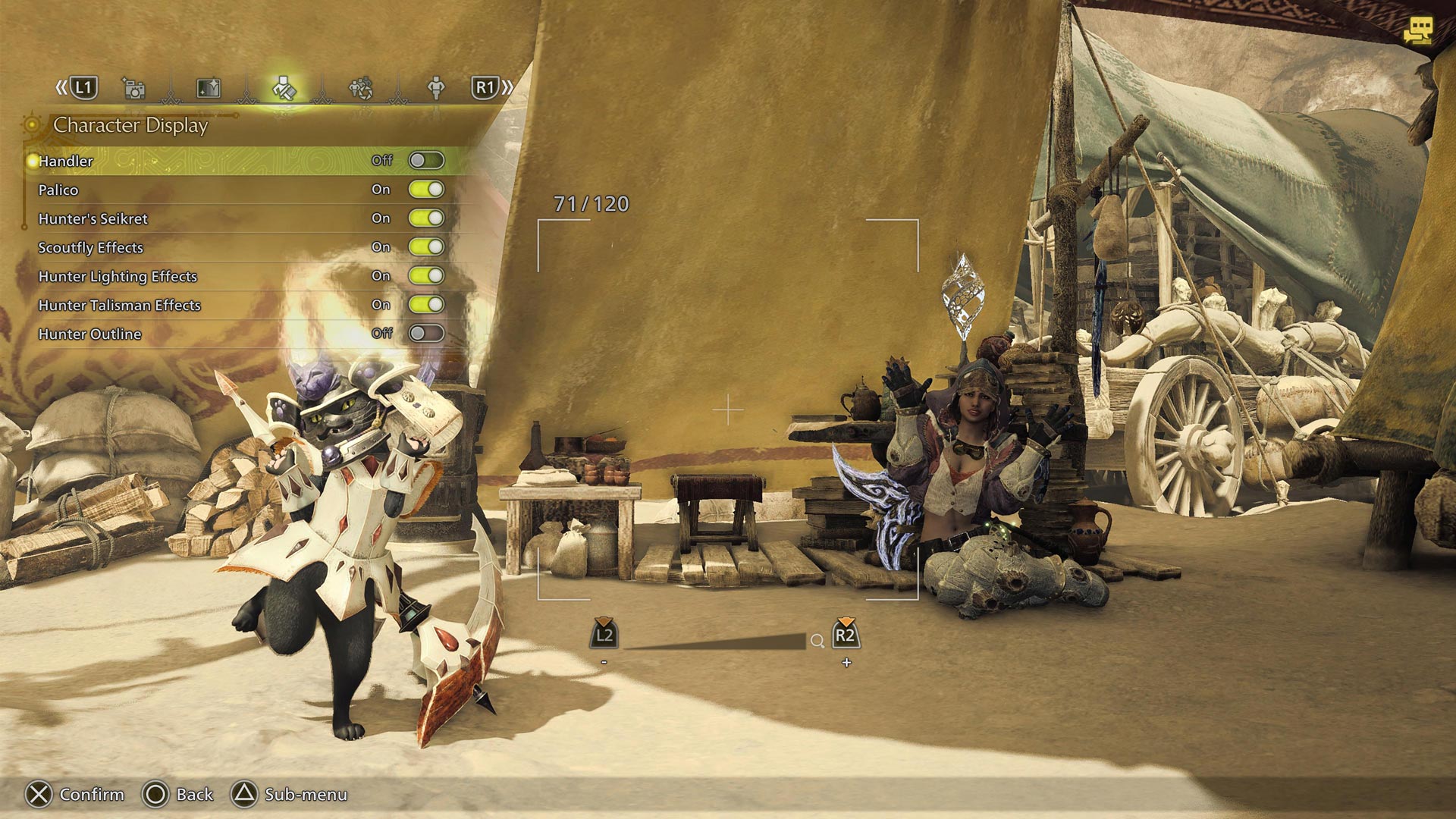
You might have noticed that Monster Hunter Wilds sometimes lacks detailed explanations. Most of the Character Display toggles are straightforward when switched off and on, but adjusting Scoutfly Effects and Hunter Outline might seem ineffective. These options are context-specific, similar to the glowing buffs.
Turning off Scoutfly Effects will only remove the highlight over any nearby resources your Scoutfly automatically marked. It's a handy option if there's an unwanted green glow from a random bush in your photo, though it unfortunately doesn't eliminate the bright Scoutfly line leading to a waypoint.
The Hunter Outline toggle pertains to the outline that appears around your hunter when obstructed by a monster. If you're aiming to capture pictures of a monster during combat and prefer not to have the conspicuous outline of your hunter, disable this for a more natural-looking photo.
Monster Hunter Wilds is currently available on PS5, Xbox Series X/S, and Windows PCs.